Unetwork License Installation Guide
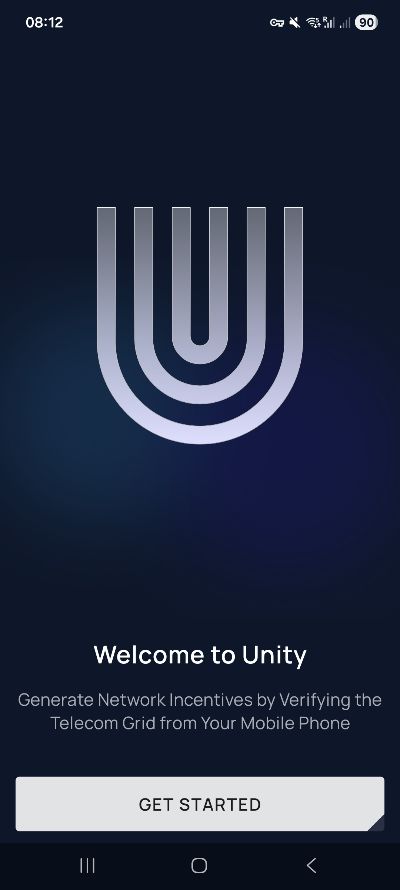
This guide shows you how to activate a Unetwork Operator Software License on your smartphone using the official Unetwork App. The screenshots below walk you through the process from installing the app to entering your Lease Code and verifying your account.
Before you start
You need a compatible Android or iOS smartphone, access to your email account and a valid Unetwork Lease Code.
How to Activate a Unetwork License
The basic activation process consists of eight steps. The exact appearance of individual screens may change with future app updates, but the screenshots below show the current activation flow used for a License Operator.
Step 1 – Download the Unetwork App
Install the official Unetwork App on your smartphone. Unetwork states that most compatible Android and iOS mobile devices can use its services.
Depending on your device and current distribution method, use the official app source available for your platform:
Step 2 – Choose “License Operator”
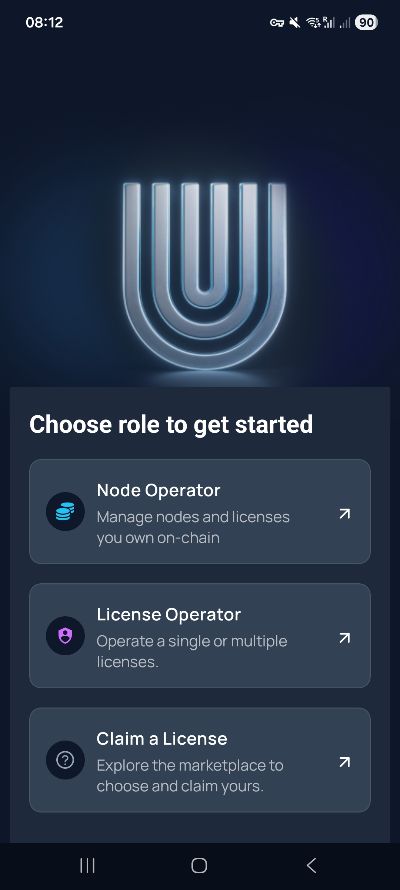
Select License Operator when the app asks which role you want to use.
This is the role used when you operate an Unetwork Operator Software License on your smartphone through a lease arrangement.
Step 3 – Enter Your Lease Code
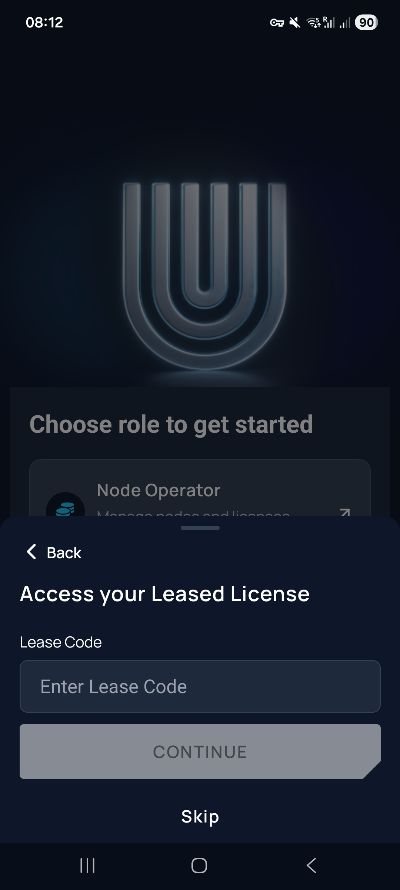
Enter a valid Unetwork Lease Code. The code connects you to an Operator Software License made available by a Node Operator and allows the associated digital lease to be established in the app.
If you do not yet have a code, you can copy one directly from the Maracuja Nodes Lease Code page.
Using a Maracuja Nodes Lease Code?
The current Maracuja lease conditions are 80% ULO / 20% UNO, a 12-month lease term and a minimum uptime requirement of 80%. Always review the conditions displayed in the Unetwork App before accepting the lease.
Step 4 – Choose a Sign-In Method
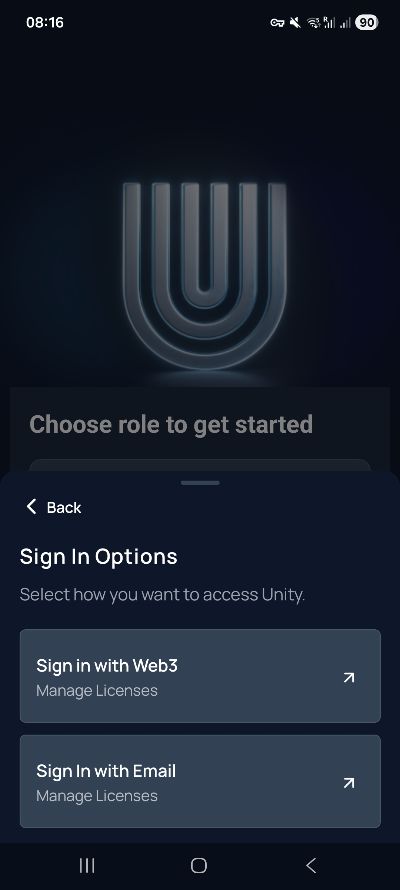
Select one of the authentication methods shown in the app. If you choose email authentication, continue with the next step.
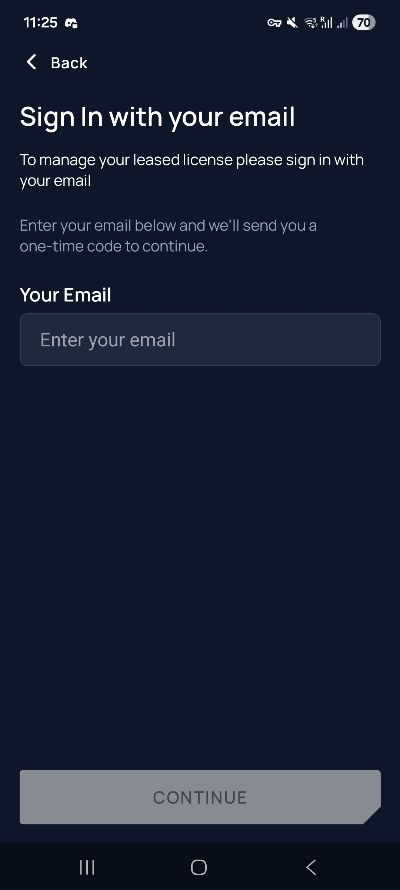
Step 5 – Enter Your Email Address
Enter an email address that you can access. The app will send a verification code to this address when email authentication is used.
Check that the address is correct before continuing so that you can receive the verification message.
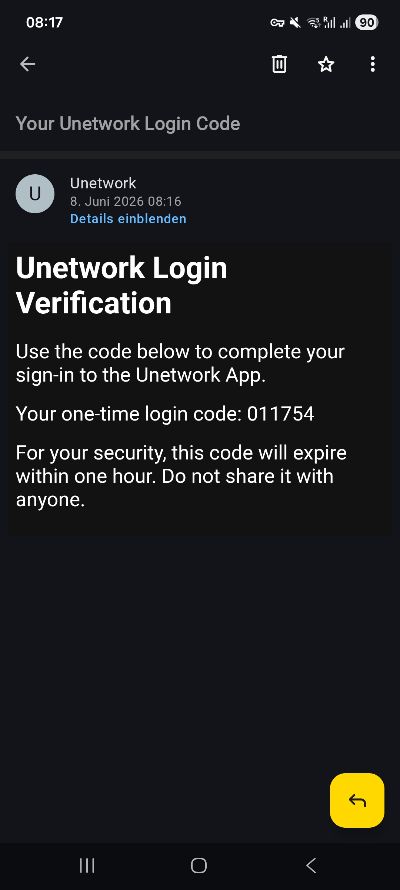
Step 6 – Enter the Verification Code
Open your inbox and enter the verification code from the Unetwork message into the app.
This verifies access to the email account used for your Unetwork login.
Step 7 – Complete License Activation
Follow the remaining instructions shown in the Unetwork App and review the lease conditions before completing the activation.
After the process is completed successfully, the Operator Software License is connected to your Unetwork account and device.
Step 8 – Keep the Unetwork App Running
Your smartphone can now connect to Unetwork and perform eligible network tasks as they become available.
Unetwork describes these activities as technical verification, monitoring, network intelligence and performance-analysis tasks carried out through participating devices.
What Happens After Activation?
Once your Operator Software License is active, the Unetwork App connects your smartphone to Unetwork’s distributed telecommunications infrastructure. Depending on task availability, participating devices can perform technical network checks and verification work.
Completed work can generate verifiable records: Unetwork states that relevant metadata is secured with a cryptographic hash and sent to WMChain, creating an on-chain record of network activity.
Privacy and mobile charges
According to Unetwork, the application does not use your SIM card or carrier account to make outbound calls or send outbound SMS, and it does not access your contacts. The network checks are performed technically through the application.
Phone and App Requirements
Android or iOS
Unetwork states that most compatible Android and iOS smartphones can use the platform. A dedicated server or validator machine is not required for a License Operator.
Internet Connection
The device needs network connectivity to connect to Unetwork and perform available verification and monitoring tasks.
Valid Lease Code
If you are using a leased Operator Software License, you need an available Lease Code and must accept the corresponding digital lease terms in the app.
Do You Need Unetwork Credits During Setup?
The activation process shown in this guide does not contain a separate credit-purchase step. Unetwork’s current website and Terms of Service nevertheless describe Unetwork Credits as part of License Operator participation, with plans starting from $1.99 per month.
Because Unetwork can change credit requirements and app behaviour, follow the requirements displayed in the current version of the Unetwork App. The setup instructions on this page are reviewed as the platform develops.
Unetwork License Activation Troubleshooting
If activation does not complete as expected, first check the points most directly related to the setup process:
- Make sure you are using the current Unetwork App version available for your device.
- Check that the Lease Code was copied completely and without additional spaces.
- If a Maracuja Lease Code is unavailable, try another current code from the Lease Code page.
- Check that you can access the email account used for verification.
- Confirm that your smartphone has a working internet connection.
For persistent technical problems, Unetwork provides an official bug-report form that can include your License ID, device model, app version and diagnostic information. You can also contact Maracuja Nodes if the issue relates to one of our Lease Codes.
Frequently Asked Questions About Unetwork License Installation
Install the official Unetwork App, select License Operator, enter a valid Lease Code, choose a sign-in method and complete the account verification process. Review the lease conditions shown in the app before completing activation.
Yes. Unetwork states that most compatible Android and iOS mobile devices can use its services. Availability and exact compatibility can depend on the current app version and device.
Yes. When using an Operator Software License provided through a lease arrangement, the Lease Code connects you to the available license and its digital lease conditions.
Current Maracuja Nodes Lease Codes can be copied directly from the Maracuja Unetwork Lease Code page. The page also shows the current Maracuja lease conditions before activation.
A License Operator uses a compatible smartphone and the Unetwork App. A separate server or validator machine is not required for this role.
According to Unetwork, its application does not use your SIM card or carrier account to make outbound calls or send outbound SMS. Unetwork also states that the app does not access your contacts.
The activation flow shown in this guide does not include a separate credit-purchase step. However, Unetwork’s official website and Terms of Service currently describe Credits as part of License Operator participation. Follow the requirements displayed in the current Unetwork App.
Check that the code was copied completely and try another currently available Maracuja Nodes Lease Code. A code may no longer be available if its associated Operator Software License has already been leased or its status has changed.
Related Unetwork Guides
Unetwork Lease Codes
Copy an available Maracuja Nodes Lease Code and review the current lease conditions.
What Is a Unetwork License?
Learn how Operator Software Licenses, License Operators and Node Operators fit together.
About Unetwork
Explore how Unetwork uses distributed smartphones for telecommunications verification and network services.
Sources & Maintenance
Last reviewed: August 2026
This installation guide is based on the current Unetwork App flow and official Unetwork documentation. App screens, requirements and individual setup steps may change as new app versions are released.
Unetwork – Official Website
Unetwork – Official FAQ
Unetwork – Terms of Service
Unetwork – Official Android Releases
Unetwork – Official Bug Report